



DSKlusion User Manual
Version 0.7.13 — November 2026
Introduction
DSKlusion is a Mirage: the whole machine, on screen. Its front panel, two-digit display, floppy drive, keyboard and sampler are all there, and you work them the way you worked the hardware. It emulates the Mirage's Motorola 6809E processor, the ES5503 "DOC" wavetable chip, the CEM3328 analog filter and the floppy controller, and it runs in one of two engines:
- LLE runs the real Ensoniq operating system, from a boot ROM and an OS disk that you supply, on the emulated hardware. What the OS does, DSKlusion does.
- HLEv2 is DSKlusion's own engine. It plays sound disks with no ROM and no OS disk, and it answers the front panel the way OS 3.2 does.
The Two Engines says which to use when.
DSKlusion ships with no ROM, no operating system and no disks. Ensoniq's operating systems and factory library are copyrighted, so you supply the boot ROM, the OS disk images and the sound disks: dumps of your own, images you are licensed to use, or sounds you sampled yourself.
This manual covers DSKlusion, not the Mirage. It explains installation, the engines, the disk drive and library, how the panel maps onto the screen, and what DSKlusion adds. For everything the operating system itself does (the parameter system, loading and saving sounds, sampling technique), use Ensoniq's Mirage Musician's Manual and Advanced Sampler's Guide. They remain the companions to this one, and DSKlusion follows them.
DSKlusion's sibling Mample plays the same sound disks with none of the machinery: no OS, no display, no panel. The two share one sound engine, and both read the same disk library.
Requirements & Installation
System Requirements
| Platforms | Windows 10 / 11, 64-bit. macOS 10.15 Catalina or later on an Intel Mac, or macOS 11 Big Sur or later on an Apple Silicon Mac. |
| Formats | VST3, CLAP and Standalone on both; Audio Unit on macOS as well. |
| Interface runtime | Windows: the Microsoft Edge WebView2 Runtime (the installer adds it if it is missing). macOS: the system's own web view, nothing to install. |
| For LLE | A Mirage boot ROM file (4,096 bytes) and an OS disk image, both your own. See Setting the boot ROM. |
| For HLEv2 | Nothing but sound disks. |
| Disks | Your own Mirage disk images. None are included. |
Installation (Windows)
Run DSKlusion-<version>-win-x64.exe.
- Licence. Read the End User Licence Agreement and tick I accept to go on.
- Install for. All users of the computer (the default) or just you.
- Components. VST3 and the licence texts are always installed; CLAP, the Standalone app and the changelog are optional.
Windows asks once for administrator permission when you install for all users. The installer is not yet code-signed, so Windows SmartScreen may say Windows protected your PC; click More info, then Run anyway.
| Component | All users | Just you |
|---|---|---|
| VST3 | C:\Program Files\Common Files\VST3\DSKlusion.vst3 |
%LOCALAPPDATA%\Programs\Common\VST3\DSKlusion.vst3 |
| CLAP | C:\Program Files\Common Files\CLAP\DSKlusion.clap |
%LOCALAPPDATA%\Programs\Common\CLAP\DSKlusion.clap |
| Standalone | C:\Program Files\Knives on Strings\DSKlusion\DSKlusion.exe, with a Start Menu shortcut |
%LOCALAPPDATA%\Programs\Knives on Strings\DSKlusion\DSKlusion.exe |
The licence texts, the changelog and the uninstaller go in the Standalone's folder. Every DAW that scans the standard VST3 and CLAP folders finds DSKlusion on its next plugin rescan.
WebView2 Runtime: DSKlusion's interface is drawn by the Microsoft Edge WebView2 Runtime. Windows 11 and up-to-date Windows 10 systems already have it, and the installer adds it if it is missing or too old. If DSKlusion ever opens as a plain panel reading WebView2 Runtime Required, click its Install WebView2 Runtime button, or install it from Microsoft's WebView2 page, then reopen the plugin.
Installation (macOS)
Open DSKlusion-<version>-mac-universal.dmg, then double-click DSKlusion-<version>-mac-universal.pkg inside it.
- Licence. Read the End User Licence Agreement and click Agree.
- Installation Type. Click Customize to choose formats; by default all four are installed. The licence texts are always installed.
- macOS asks for an administrator password.
The installer and everything it installs are signed and notarized by Apple, so macOS opens them without a security warning.
| Component | Location |
|---|---|
| VST3 | /Library/Audio/Plug-Ins/VST3/DSKlusion.vst3 |
| CLAP | /Library/Audio/Plug-Ins/CLAP/DSKlusion.clap |
| Audio Unit | /Library/Audio/Plug-Ins/Components/DSKlusion.component |
| Standalone | /Applications/DSKlusion.app |
| Licence texts | /Library/Application Support/KnivesOnStrings/DSKlusion/ |
The disk image also holds a README, the licence texts and uninstall.sh. Logic Pro and GarageBand list DSKlusion under Audio Units → Knives on Strings after they rescan; other DAWs find it on their next plugin rescan.
Uninstalling
Windows: use Settings → Apps → Installed apps (or Add or remove programs) and uninstall DSKlusion, or run Uninstall.exe in the Standalone's folder.
macOS: open Terminal, drag uninstall.sh from the DSKlusion disk image into the window, and press Return. It lists what it will remove and asks you to confirm. uninstall.sh --dry-run shows the list without removing anything.
Uninstalling leaves your own data alone: your settings, the OS images you collected and your backups in Documents/KnivesOnStrings/DSKlusion, and your disk library in Documents/KnivesOnStrings/Mirage_Disks. On macOS, uninstall.sh --purge also removes the DSKlusion folder; on Windows, delete it yourself if you want a clean slate. The disk library folder is shared with Mample and is never removed for you.
User Data Location
Both live in your Documents folder: Documents\KnivesOnStrings\ on Windows, ~/Documents/KnivesOnStrings/ on macOS.
| Folder | Contents |
|---|---|
Documents\KnivesOnStrings\DSKlusion\ |
DSKlusion's own data: its settings, its log (see Settings → Advanced), and the folders below. |
Documents\KnivesOnStrings\DSKlusion\OS\ |
The default folder for your OS disk images. See Setting the boot ROM. |
Documents\KnivesOnStrings\DSKlusion\DiskBackups\ |
The default backup folder: a copy of a disk is kept here before the Mirage overwrites it. See Write protection and backups. |
Documents\KnivesOnStrings\DSKlusion\Dumps\ |
Debug dumps, if you save any. See Debug dump. |
Documents\KnivesOnStrings\Mirage_Disks\ |
Your disk library. Every image here (and in subfolders) appears in the disk browser. Also holds disk_catalog.json: names and details for known disks. Your own names and tags are kept beside it, in your labels file (disk_catalog.user.json). Shared with Mample. |
Documents\KnivesOnStrings\Mirage_Disks\User Library\ |
Your own disks: the ones you make with New disk… and the copies you save. Listed in the browser as USER LIBRARY. |
Setting the boot ROM for LLE
LLE starts the Mirage from its boot ROM, the 4 KB chip that the real machine reads on power-up. DSKlusion does not ship one. HLEv2 does not need it, so you can skip this section until you want LLE.
- Open Settings → DISKS.
- Under BOOT ROM, click Browse and choose your ROM file (
.binor.rom, exactly 4,096 bytes). - The line under the field says what DSKlusion made of it:
| Message | Meaning |
|---|---|
| Boot ROM found. | A ROM DSKlusion recognises. |
| Boot ROM loaded, but it is not one we recognise… | It loaded, but it may be a different revision or a damaged copy, and LLE may misbehave. |
| That file is not a Mirage boot ROM: it must be exactly 4,096 bytes. | Wrong file. |
| No boot ROM at this location. LLE mode needs one; HLEv2 does not. | Nothing there. |
Which ROM. Boot ROMs come in revisions. A PLUS ROM (the later Mirages) boots OS 3.2, MASOS 2.0 and Sound Process. A disk that carries an older OS (OS 2.x) needs the older 2.1 ROM, and on a PLUS ROM it stops with 05 on the display. See Troubleshooting.
If you ask for LLE with no usable ROM, DSKlusion keeps running HLEv2 and shows BOOT ROM NEEDED, with Choose Boot ROM… and Use HLEv2 buttons.
Setting the OS images folder
Under Settings → DISKS → OS DISK IMAGES, Browse to a folder holding your Mirage OS disk images (.img, .bin, .hfe). The default is Documents\KnivesOnStrings\DSKlusion\OS\. In LLE, the OS drop-down in the engine band lists what it finds there (see The engine band).
The Two Engines: LLE and HLEv2
A Mirage is a computer running a program. DSKlusion offers two ways to run it.
- LLE (low-level emulation) emulates the chips and runs Ensoniq's own operating system code on them, exactly as the Mirage does. You supply the boot ROM and an OS disk; the OS boots, and what you see on the display is the OS talking. It takes a moment longer to start than HLEv2. Use it for fidelity to the machine, and for anything that lives in the OS: MASOS, Sound Process, an OS's quirks.
- HLEv2 (the second high-level engine) is DSKlusion's own engine, built from scratch. It plays the disk's sounds directly and answers the front panel the way OS 3.2 does, with no OS code. It needs no ROM and no OS disk, starts at once, and is the default. Use it to play sound disks.
Settings calls these HLEv2 and LLE; the engine band's switch says HLE. They are the same two engines.
Note: Neither engine is a recording. Both synthesise from the disk's data. HLEv2 is checked against the LLE, which is the reference, wherever the two have been measured side by side; where they differ, LLE is the authentic one.
The engine band
A band across the top of the panel shows the state of the machine.



| Part | Meaning |
|---|---|
| ENGINE: HLE / LLE | The switch. Click to change engine. The same choice is in Settings → SOUND → ENGINE MODE. |
| OS (LLE only) | A drop-down of the OS disk images in your OS folder (Select OS… when none is chosen). Picking one boots that OS from cold. It is disabled until a boot ROM is set and an OS folder holds images. |
| FW (LLE only) | A tick when the boot ROM loaded. |
| DISK (LLE only) | Lights red while the emulated drive reads or writes. See The DISK light. |
| Status | One short phrase, in the box at the right. |
The status phrases:
| Status | Meaning |
|---|---|
| Ready | HLEv2 is running; or the OS is up in LLE. |
| No ROM | LLE, and no usable boot ROM. |
| No OS disk | LLE, boot ROM loaded, and nothing in the drive. |
| Booting… | LLE is starting from the disk in the drive. |
| No OS | LLE is running, but the disk in the drive does not hold a recognised OS. |
| Needs 2.1 ROM | The disk carries an older OS that your PLUS boot ROM refuses. Hover it for the full sentence, "Disk requires 2.1 boot ROM". See Troubleshooting. |
| Load failed | The disk could not be loaded, whether you chose it or a reopened project asked for it. |
While LLE starts, the display shows Booting Firmware. Brief messages (a refused mount, for instance) take the status's place for a moment.
Switching engines keeps the disk in the drive.
What each engine can do
A ✓ means the feature works there; a — means it does not. Columns are the engine and, in LLE, the OS that is running.
| Feature | HLEv2 | LLE: OS 3.2 | LLE: MASOS 2.0 |
|---|---|---|---|
| Works with no boot ROM and no OS disk | ✓ | — | — |
| Load a sound from the disk (LOAD LOWER / UPPER) | ✓ | ✓ | ✓ |
| Edit parameters from the panel (PARAM, VALUE, ON, OFF) | ✓ | ✓ | ✓ |
| Type a value on the keypad¹ | ✓ | — | — |
| Save a sound to the disk from the panel | ✓ | ✓ | ✓ |
| Save Configuration (P14) | ✓ | ✓ | ✓ |
| Sequencer (REC, PLAY, LOAD, SAVE SEQ)² | — | — | — |
| MASOS's Select Upper / Lower and Data Edit keys³ | — | — | ✓ |
| Sample from a file (File import) | ✓ | ✓ | ✓ |
| Sample live (Live input) | ✓ | ✓ | ✓ |
| ISF-1 cartridge | — | — | ✓ |
| Wavesample sections on the waveform, lit while they sound | ✓ | ✓ | ✓ |
| Side block: Envelopes | ✓ | ✓ | ✓⁴ |
| Side block: Params | ✓ | ✓ | ✓⁴ |
| Side block: Disk | ✓ | ✓ | ✓ |
| Side block: Macros | ✓ | ✓ | ✓⁴ |
| Host automation | ✓ | ✓ | ✓⁴ |
| The OS's own MIDI setting (P81 / P82) limits what plays | — | ✓ | ✓ |
| System Exclusive messages reach the instrument⁵ | — | ✓ | ✓ |
| Note Timing setting (Tight / Authentic) | ✓ | — | — |
| DISK light | — | ✓ | ✓ |
¹ HLEv2 lets you type a parameter's value with the digit keys after VALUE. The real Mirage has no such entry: its values change only with ON and OFF, and a digit starts a parameter number. This is a deliberate difference. LLE runs the real OS and behaves as the hardware does. ² The panel's four SEQ keys are inactive in HLEv2 and under OS 3.2; clicking one says the sequencer is not supported. Under MASOS the same three keys are relabelled (see note 3) and the fourth stays inactive. ³ MASOS re-purposes the SEQ keys: SEL U and SEL L pick a wavesample number for the Upper and Lower halves, and DATA EDIT opens its "Choose Function" menu of wavesample operations. Those operations are MASOS's own and are covered by its manual. ⁴ Under MASOS the Upper half's program is not shown or read back: the Params and Envelopes panes show the Lower half only. Macros and host automation follow the same mapping; they are confirmed on the Lower half only. ⁵ The plug-in passes SysEx to the OS's MIDI input; HLEv2 does not process it. DSKlusion has no MIDI output.
Sound Process. DSKlusion also boots Ensoniq's Sound Process in LLE. It has no Upper and Lower halves, so it has no wavesample sections on the waveform and does not use the macros, and sampling from a file or a live input is not available under it.
Booting older disks. An OS 3.2, MASOS 2.0 or Sound Process disk boots on any of the boot ROMs. An older OS 2.x disk needs the 2.1 ROM; see Troubleshooting. HLEv2 plays the sounds of any disk without booting anything, so it needs no ROM at all.
Known differences
HLEv2 is built from scratch, checked against the LLE on what has been measured. The differences a player can meet:
- Typed values (note 1 above).
- Note Timing. In HLEv2 a note starts the instant it arrives (Tight, the default). Authentic adds a real Mirage's latency. LLE always has the OS's own timing. See Settings → Sound.
- No SysEx in HLEv2, and the OS's own MIDI setting does not apply (see Playing).
- Start-up. HLEv2 is ready at once. LLE runs the OS's start-up, including the filter auto-tune, before the display comes alive.
The Drive and Your Disks
OS disks and sound disks
A Mirage disk may carry two kinds of thing: sounds, and an operating system. A disk with an OS on it is a boot disk. Most of your library is sound disks. In LLE you need an OS disk to start the machine; once it is running you swap sound disks in and out, as on the hardware. In HLEv2 there is no OS to boot, and every disk is a sound disk.
The sounds are organised as the Mirage does: a disk holds Sounds for the Lower and Upper halves of the keyboard; each Sound has four Programs (the filter, envelope and LFO settings) and eight Wavesamples (the recordings). The Musician's Manual explains them.
Supported images
| File | What it is |
|---|---|
.img |
A raw dump of the disk. The only format DSKlusion writes. |
.hfe |
An HxC / Gotek floppy-emulator container. Read only: a disk you edit is saved as .img. |
.edm |
An EDM container image. Read only. |
.bin |
A raw dump under another name. |
| (no extension) | Also fine. |
DSKlusion identifies disk images by their contents. An image the size of one Mirage disk loads; one that is cut short or has extra bytes does not, and the engine band says Load failed. A damaged image (missing or unreadable sectors) still loads so its intact sounds play, but it is mounted write-protected.
The disk browser
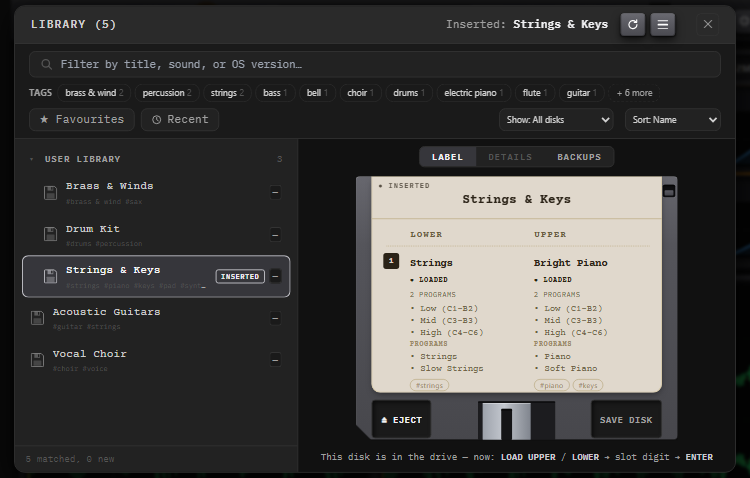
Click the disk's name in the header (the large pill in the middle of it) to open the disk browser. The browser shows a floppy drawn the way a real disk looks: its label with the disk's name, the write-protect tab in the corner, and below it three controls: EJECT (or INSERT) on the left, the shutter in the middle and SAVE DISK on the right.
| Control | Function |
|---|---|
| Search | Filters the list as you type, by title, sound or OS version. |
| Tags, ★ Favourites, Recent | Narrow the list. Recent shows the last ten disks you inserted. |
| Show: | All disks, Unnamed, or Write-protected. |
| Sort: | Name, Date added, Last inserted or Directory. |
| Rescan (the circular arrow) | Looks for disks added, changed or removed since the browser opened. |
| ☰ (the library menu) | New disk…, Export my labels…, Import my labels… and Hide duplicates. |
| LABEL, DETAILS, BACKUPS | The three views of the selected disk. DETAILS edits its names; BACKUPS lists the earlier copies kept before each overwrite. |
The list shows your USER LIBRARY above the sound disks, with subfolders as folders. The disk in the drive is marked Inserted.
Hide duplicates shows identical copies once. Disks and their sounds can be named, tagged and starred; names and tags are kept in your own labels file (disk_catalog.user.json, beside the catalogue), shared with Mample, and survive a catalogue update. The disk library chapter of the Mample manual describes the catalogue and the labels in full; DSKlusion's browser works the same way.
Note: Mirage disks carry no text: no title, no sound names. The names come from the catalogue and your labels, not from the disk.
Mounting and ejecting
INSERT puts the selected disk in the drive. EJECT takes the disk out. Like pushing a floppy into a real Mirage, inserting loads nothing: the sound already in the machine keeps playing. To bring a sound off the disk, use the panel's LOAD UPPER or LOAD LOWER, a slot digit and ENTER, as you would on the hardware. (The Musician's Manual has the procedure.)
Two cases boot or load by themselves:
- In LLE, inserting a disk into a machine that is not running an OS boots the disk. Inserting a disk into a running OS never reboots it.
- In HLEv2, inserting a disk into a machine with nothing loaded loads the disk's sound 1 into both halves.
To boot a different OS in LLE, choose it in the band's OS drop-down, or insert it and press RESET (the power-cycle key beside the disk name, tooltip Power-cycle; it power-cycles the machine and boots from the disk in the drive). In HLEv2 a RESET is refused with a message while the drive is busy or a recording is armed.
With the drive empty, LOAD does nothing; in HLEv2 the display shows nd (no disk). In LLE the OS draws the display and shows its own message.
The DISK light
In LLE, the DISK light in the engine band glows while the emulated drive reads or writes. While it is lit, EJECT, INSERT, SAVE DISK and restoring a backup are locked, as the drive is busy ("Disk drive busy"). Pulling a disk mid-load leaves a sound half-loaded, which is why. There is no DISK light in HLEv2.
Write protection and backups
Disk images are precious: several of those in circulation are the only copies in existence. DSKlusion protects them in four ways.
- Write protection is real. The tab in the corner of the floppy works as on the hardware. A write-protected disk refuses the Mirage's saves, and in HLEv2 the display shows Pd (in LLE, the OS's own message). Click the tab to protect or unprotect a disk. Clearing the protection on an OS, factory or commercial disk always asks you to confirm.
- Every write is confirmed. When the Mirage is about to write to a disk, a Confirm disk write dialog names the disk and says whether it overwrites or creates it. Write goes ahead; Cancel (or Escape) does not. OS, factory and commercial disks are always confirmed. For ordinary disks, Settings → DISKS → DISK WRITES → Confirm before the Mirage writes to a disk switches the question off.
- A backup comes first. Before DSKlusion overwrites a disk file, it copies the previous one to the backup folder (Backup folder in the same section; the default is
Documents\KnivesOnStrings\DSKlusion\DiskBackups\). If it cannot take the backup, the save does not happen. Backups kept per disk (default 10) limits how many are kept, "plus the original, which is never deleted". The BACKUPS view of a disk lists them, each with a Restore button. - A disk that cannot be overwritten is never written over. Containers (
.hfe,.edm), read-only files and the like are saved as a copy instead. See Saving.
New disk
☰ → New disk… opens a Save dialog in your User Library, makes a blank Mirage disk there as a .img, and puts it in the drive. It has no OS and no sounds. Like the archive disks that carry no boot code, it will not boot a real Mirage by itself; it is for saving sounds onto. If the drive holds changes you have not saved, the disk is made but not inserted, and the message says so.
The Front Panel on Screen
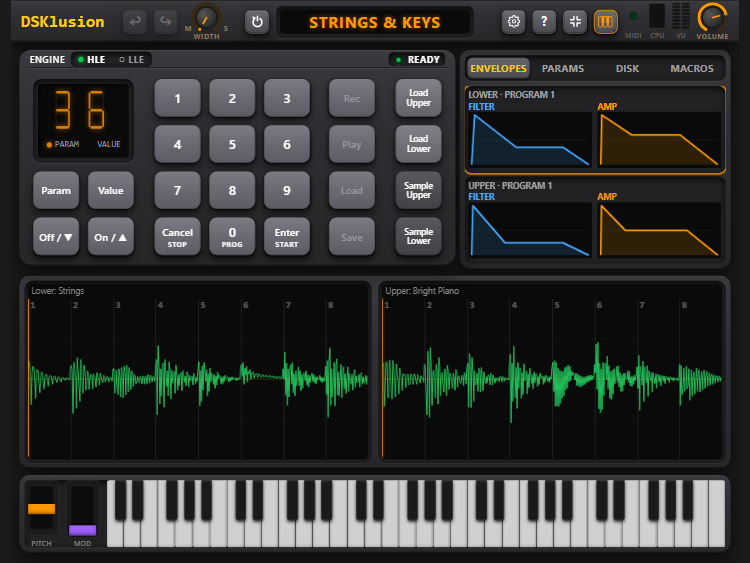
From the top, the window is the header (disk name, controls and meters), the engine band across the top of the panel, the button panel with the side block beside it, the two waveform screens (Upper and Lower), and the keyboard.
The header
From left to right:
| Control | Function |
|---|---|
| DSKlusion | The name. |
| Undo / Redo | Step back and forward through your parameter edits. |
| WIDTH | The stereo width of the output, from M (mono, both outputs the same) to S (each voice wholly to one side, as on a DSK-1). The default is mono. |
| RESET (power-cycle key; tooltip Power-cycle) | Power-cycles the machine and boots from the disk in the drive. |
| Disk name | The disk in the drive, or NO DISK. Click it to open the disk browser. Hover for the file's full path. |
| ⚙ Settings, ? About | Settings; and About, with the version, links and Report an Issue…. A red dot on ? means a newer version exists. |
| Tiny view | See Tiny view. |
| Keyboard | Shows or hides the on-screen keyboard. |
| MIDI | Lights when MIDI arrives from the host, on any channel, in either engine. |
| CPU, VU | Load meter, and a stereo output level. |
| VOLUME | Master output level. A new instance starts at 75 %. |
The panel
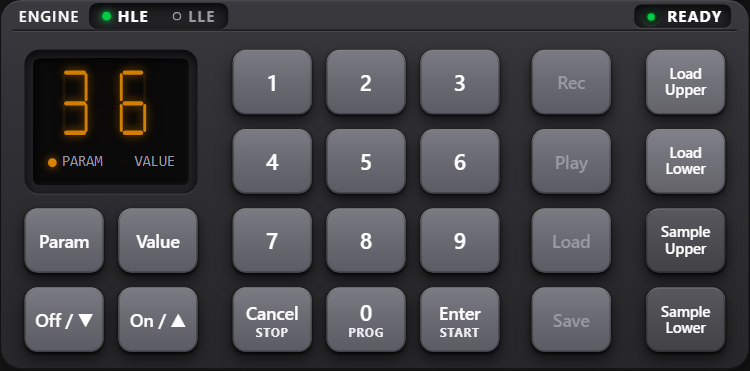
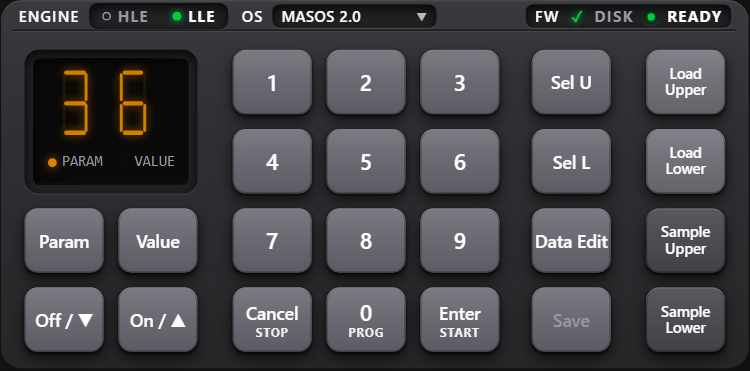
The panel mirrors the Mirage's, in the DSK-8's grouping:
| Group | Keys |
|---|---|
| CONTROL | The two-digit display, with the PARAM and VALUE lamps; PARAM, VALUE, OFF / ▼ and ON / ▲. |
| SELECT | The digits 1 to 9, CANCEL (also STOP), 0 (also PROG) and ENTER (also START). |
| SEQ | REC, PLAY, LOAD, SAVE: the sequencer's keys. See below. |
| LOAD | UPPER and LOWER: load a Sound from the disk into that half. |
| SAMPLE | UPPER and LOWER: sample into that half. See Sampling. |
Click a key to press it. Its function is the OS's: PARAM and VALUE choose what the display shows, ON and OFF change the value, a digit starts a parameter number, and so on. Where the OS takes over, the Musician's Manual is the reference.
The display shows what the Mirage's own display shows: a parameter number, a value, or a message (in HLEv2, nF for an empty slot, nd for no disk, Pd for a protected disk). The PARAM lamp lights when the display shows a parameter number and the VALUE lamp when it shows a value. The display's colour is a setting (see Appearance).
The keys change with the OS. The panel's labels follow the OS that is running:
| Key | OS 3.2 / HLEv2 | MASOS 2.0 | Sound Process |
|---|---|---|---|
| REC | inactive | SEL U | PROG |
| PLAY | inactive | SEL L | STOP |
| LOAD (SEQ) | inactive | DATA EDIT | LOAD |
| SAVE (SEQ) | inactive | inactive | SAVE |
| LOAD UPPER / LOWER, SAMPLE UPPER / LOWER | as labelled | as labelled | RESTORE, MID, UPPER, LOWER |
An inactive key is dimmed; clicking it says that DSKlusion does not support the sequencer. Hover over any key for what it does under the running OS.
Computer keyboard
DSKlusion takes these keys when no text field has focus:
| Key | Panel key |
|---|---|
| 0–9 (main row or numpad) | the digit keys |
| Enter | ENTER |
| Escape | CANCEL |
| P, or numpad / | PARAM |
| V, or numpad * | VALUE |
| ↑, or numpad + | ON / ▲ |
| ↓, or numpad − | OFF / ▼ |
There are no shortcuts for the LOAD, SAMPLE or SEQ keys.
Tiny view
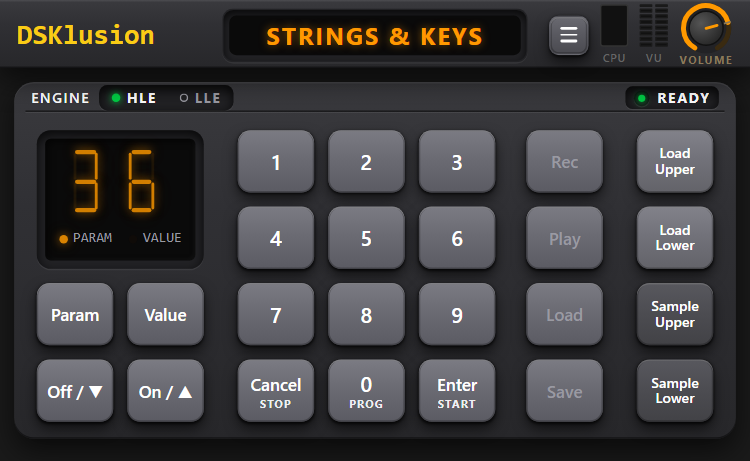
Tiny view shrinks DSKlusion to a 530 × 326 window holding only the header and the button panel: for a DAW session where the panel is all you want to see. Switch it on with the header's Tiny view key or Settings → APPEARANCE → Tiny view. In Tiny view a ☰ menu in the header holds Reset machine, Settings…, About… and Full view. The window grows while a dialog is open. The choice is saved with the project.
Window scale
Settings → APPEARANCE → Window scale resizes the window by 50 %, 75 %, 100 %, 150 % or 200 %, each labelled with the size it produces. The choice is saved with the project.
Playing
MIDI
DSKlusion accepts MIDI from your host, or from the MIDI devices enabled in the standalone's Settings → MIDI / AUDIO. It sends no MIDI.
The MIDI channel. Settings → MIDI / AUDIO → MIDI → Receive Channel selects Omni (All) or Channel 1–16. Messages on other channels are dropped before the engine sees them. What happens next depends on the engine:
- HLEv2 plays what passes the Receive Channel filter. That is the only channel setting that matters.
- LLE passes the bytes to the OS, which has its own MIDI setting on the panel: P81 (omni on/off) and P82 (the channel). With P81 off, the OS ignores any note not on its channel. Under the Receive Channel, Settings shows Mirage OS MIDI setting: with the OS's current omni or channel, and warns when the OS would ignore your notes. The on-screen keyboard plays on the OS's own channel.
| Message | HLEv2 | LLE |
|---|---|---|
| Notes, with velocity | ✓ | ✓ |
| Pitch bend | ✓ | ✓ |
| Mod wheel (CC 1), sustain (CC 64) | ✓ | ✓ |
| All Notes Off (CC 123) | ✓ | ✓ |
| Other controllers and channel pressure, as the sound's P78 / P79 assign them | ✓ | ✓ |
| System Exclusive | — | ✓ |
In LLE, the OS interprets whatever the plug-in hands it, so what the OS does with a message, DSKlusion does. The MIDI light in the header flashes on any channel message from the host.
The keyboard and wheels
Click Keyboard in the header to show the on-screen keyboard. It spans the Mirage's five octaves, C2 to C7. Click a key to play it; on-screen keys always play at a velocity of 100, so use a MIDI keyboard for dynamics. The PITCH wheel springs back to centre; the MOD wheel stays where you leave it. The keyboard lights the notes that sound, including those from MIDI.
The keyboard split, wheels, velocity response, mono mode and eight-voice allocation are all the Mirage's, set by the Sound on each half and the OS's parameters. They are not DSKlusion's to describe: see the Musician's Manual.
In a DAW
DSKlusion is an instrument with a stereo Output. It also has a Sample In input, off by default: turn it on in your host to feed live audio to the Mirage's sampler (see Sampling).
Your project keeps: the disk in the drive and the sounds on each half (an LLE project reopens with its OS booted and the sound disk back in the drive), the window scale and Tiny view, and the macro assignments. If a reopened project's disk cannot be loaded, the engine band says Load failed.
Host automation. DSKlusion lists the synthesis and performance controls to your host: Master Tune (P21), the LFO, oscillator and filter parameters (P31–P38), the filter and amplitude envelopes and their velocity amounts (P40–P59), Pitch Bend, Program Change, Mod Wheel, Sustain Pedal, Macro 1–8, and Stereo Width. A change you make on the panel updates the host's parameter, and in HLEv2 an automated synthesis parameter takes effect on the next note.
The disk commands, keyboard set-up and system bytes, the wavesample fields, the sampling controls and the diagnostics are not offered to the host.
Saving
Saving works as on the Mirage, and then does a little more.
Saving a sound. Use the panel's save procedure. In HLEv2 it is PARAM 11, 12 or 13 (Lower, Upper, both), a slot digit, then ENTER; in LLE it is the OS's own, which the Musician's Manual describes. In HLEv2 the display flashes and blanks with the Mirage's timing, and shows Pd on a write-protected disk and nd with no disk; in LLE the OS draws its own display. Save Configuration (PARAM 14) saves your setup (MIDI, sampling and so on) to the disk in the drive.
The file is written, too. When the Mirage has finished a save, DSKlusion writes the disk file on your computer, after the confirmation and a backup (see Write protection and backups). There is no second prompt: the confirmation of the Mirage's own ENTER was the question.
When the file cannot be overwritten. Only an ordinary .img in a writable place is overwritten. An .hfe or .edm container, a read-only file or a file that has gone is not. For those DSKlusion opens a Save a copy of the disk dialog, pre-filled with your User Library, and the saved copy takes the original's place in the drive; later saves go to it. Cancel it and the change stays in the drive, with the dot on SAVE DISK • lit.
SAVE DISK. The button beside the floppy is Save As: it opens a Save Disk Image dialog (.img only) to save the disk in the drive to a file of your choosing, to keep a copy, to rename it, or to try again after a cancelled or failed write. A dot (SAVE DISK •) means the drive holds changes that no file does.
Names in a spare copy. If you use SAVE DISK to write a copy while the original stays in the drive:
- a copy saved into your User Library keeps the disk's sound names, and its disk name is marked (copy): Strings becomes Strings (copy);
- a copy saved into any other folder, such as an archive folder, carries no names. It appears under its filename until you name it.
Stars are never copied. A disk saved over its own file keeps its labels.
Note: The Mirage never saves on its own. Edits live in the machine until you save them; a project stores the disk, not edits you have not saved.
Sampling
The Mirage is a sampler, and so is DSKlusion. Press SAMPLE UPPER or SAMPLE LOWER and a dialog offers two ways in:
- File import loads a WAV, AIFF, 8SVX, AU, VOC or raw audio file into that half.
- Live input records from an audio input, through the Mirage's own sampling.
The Musician's Manual and Advanced Sampler's Guide explain the technique: the sampling rate, the input filter, trigger level and multisampling. DSKlusion adds the way in.
Default sampling mode. Settings → SOUND → SAMPLING → Default sampling mode chooses what the SAMPLE keys do first: Ask every time (the dialog), File import or Live input.
File import
Choose a file and DSKlusion converts it as the Mirage's own input would. The dialog says what it replaces: the whole half and all eight wavesamples, or, with multisampling (P77) on, just the current wavesample. A file is treated as line level and is filtered as the Mirage's input filter would at the P74 you set; a P73 below 30 is refused, as the stock Mirage cannot do it. In LLE, the OS must have booted. Under Sound Process, import is not available.
Live input
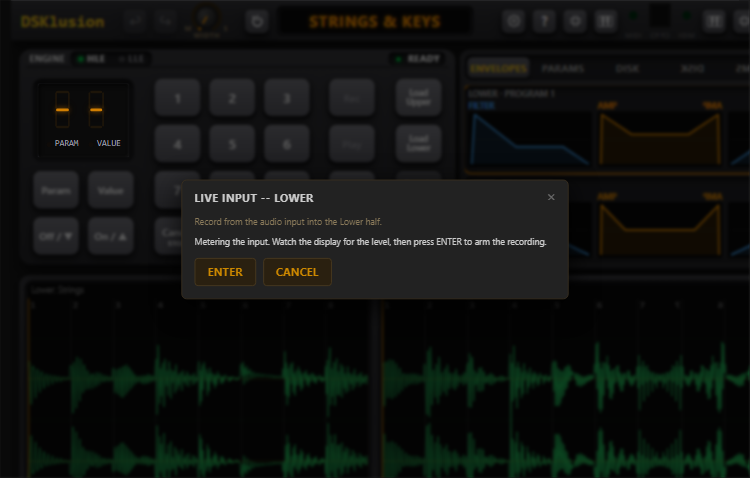
The capture panel follows the Mirage's own procedure: START METERING puts the input level on the Mirage's display (in both engines); press ENTER, then Replace in the "Replace the … half's sound?" confirmation (Cancel keeps the half as it is), to arm the recording; it waits for the trigger level, then records. A line says where you are. CANCEL works only while the panel is metering, before you arm it, and changes nothing; once armed, the recording cannot be cancelled until the trigger level arrives. If the input is lost while it waits for the trigger, nothing is recorded and the half is reset.
Choosing the input.
- In a plug-in, turn on DSKlusion's Sample In input in your host. The capture listens to one channel of that input.
- In the standalone, Settings → SOUND → SAMPLING → Live input picks the input device and channel. The input opens when you choose it and is heard only while you sample. Or leave it on Ask every time and choose Input for this capture in the panel.
If there is no input, the panel says why (for example, Turn on DSKlusion's Sample In input in your host.).
In HLEv2, a recording resets the half as the Mirage does and is saved to disk with the sound-save procedure above.
The ISF-1 cartridge
Settings → SOUND → SAMPLING → ISF-1 cartridge fitted adds Ensoniq's ISF-1 input filter, which MASOS records through (P93 1–25). It works in LLE only, and changing it restarts the machine. Without it fitted, a MASOS P93 other than 0 cannot sample from the input jack, and the capture panel says so.
Beyond the Hardware
DSKlusion adds a few things the Mirage never had.
The waveform screens
Two screens, Upper and Lower, draw the sample data of each half. Each caption names the disk and sound the half came from.
The screens divide each half into sections, one for each wavesample, and show the pages of sample memory that each plays. A section lights while its wavesample sounds, and only the section that sounds lights. They work in HLEv2, and under OS 3.2 and MASOS in LLE. Sound Process has no wavesample blocks of this shape, so its screens show none.
The side block
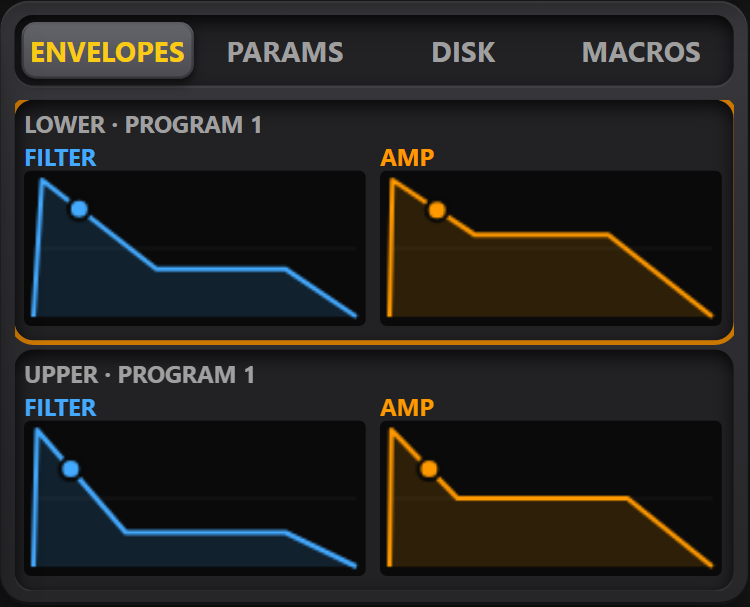
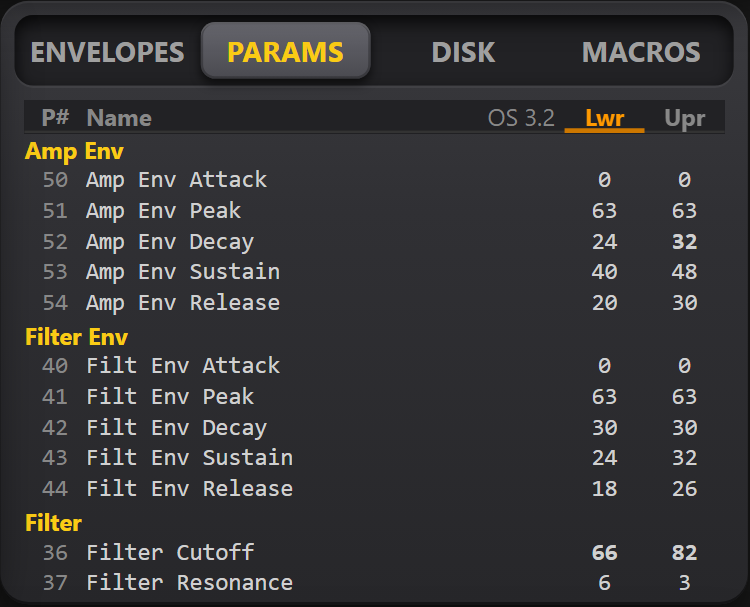
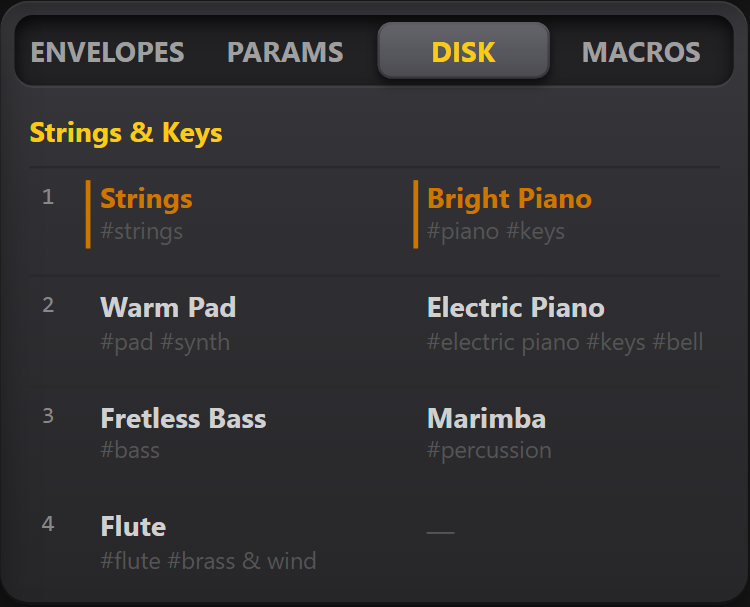
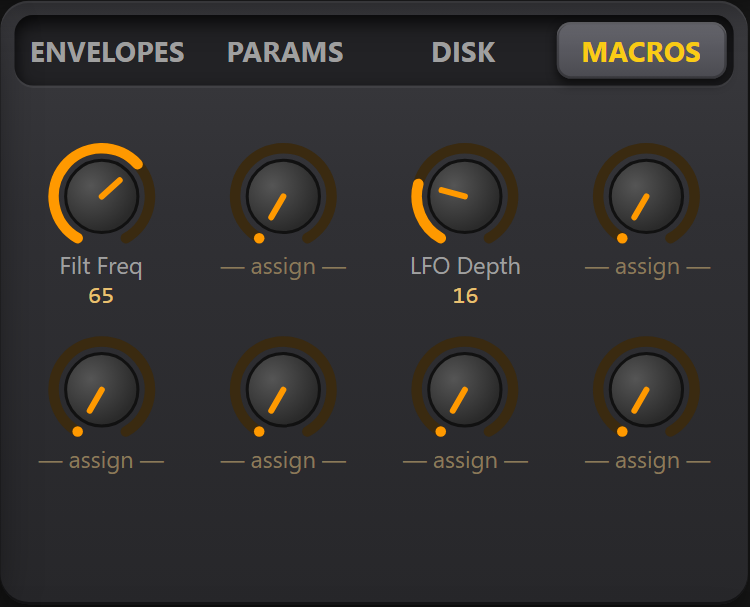
Four tabs sit beside the button panel:
| Tab | What it shows |
|---|---|
| ENVELOPES | Both halves' filter and amplitude envelopes, drawn from the live program, with a dot on the curve for each sounding note. The half the keypad edits is outlined. |
| PARAMS | The parameters, live and read-only, in the set of the running OS. A value that differs from what the disk loaded is bold. Click nothing here: editing is by the panel. |
| DISK | The disk in the drive and its sounds, with the loaded halves highlighted. |
| MACROS | Eight knobs. |
Macros. Right-click a knob to assign it a parameter: the filter's cutoff and resonance (P36, P37), the LFO's rate and depth (P31, P32), and the filter and amplitude envelopes (P40–P44, P50–P54). Choose Clear to unassign it. A knob drives that parameter on both halves, from the next note you play. Drag it, scroll over it, or use the arrow keys; double-click returns it to where it was when you assigned it. Macros are saved with your project and appear to your host as Macro 1–8.
The Mirage display in the capture panel
During live sampling the input level is on the Mirage's own display. There is no separate meter.
Debug dump
Settings → ADVANCED → Save debug dump writes the engine's state, parameters, disk files and memory to one file in Documents\KnivesOnStrings\DSKlusion\Dumps. Press it while a problem is happening, ideally in each engine, and send us the file privately: it holds sample memory, so it can contain the sounds of the disk you were playing. It is used only to diagnose the problem. See Support.
Settings
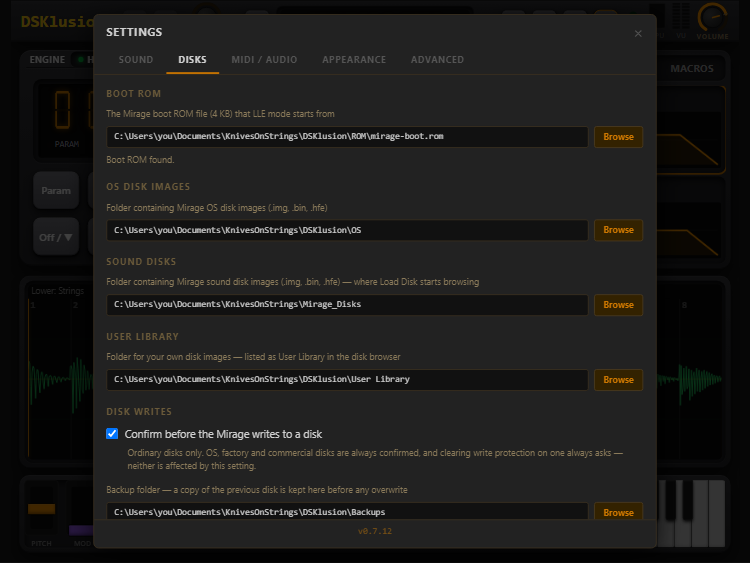
Click ⚙ in the header. The tabs are SOUND, DISKS, MIDI / AUDIO, APPEARANCE, PRIVACY and ADVANCED. Settings save automatically.
Sound
| Setting | Description |
|---|---|
| ENGINE MODE | HLEv2 — Modern (no OS disk needed) (the default) or LLE — Authentic (requires boot ROM + OS disk). The same switch as the engine band's. |
| LLE RETRIGGER BEHAVIOR → Fix stuck retrigger voices | On by default. OS 3.2 can strand a voice when a key is struck again before its previous note-off arrives; this fixes it. Off restores the OS's behaviour, stuck voices included. LLE only. |
| NOTE TIMING | Tight (no added latency) (the default), or Authentic, which adds the OS's latency (4.0 ms before a note starts, 1.6 ms before it releases). HLEv2 only; LLE always has the OS's own timing. |
| RENDER QUALITY | Direct (Fastest), Standard, 2x Oversample or 4x Oversample. The first is lightest on the CPU. Your choice is remembered. |
| SAMPLING → Default sampling mode | Ask every time, File import or Live input. |
| SAMPLING → Live input | The input device and channel for live sampling (standalone), or the Sample In channel (plug-in). |
| SAMPLING → ISF-1 cartridge fitted | See The ISF-1 cartridge. |
Disks
| Setting | Description |
|---|---|
| BOOT ROM | The 4 KB Mirage boot ROM LLE starts from. See Setting the boot ROM. |
| OS DISK IMAGES | The folder of OS disks that the band's OS list reads. |
| SOUND DISKS | The folder scanned for sound disks. Default Documents\KnivesOnStrings\Mirage_Disks\. |
| USER LIBRARY | Your own disks, listed as USER LIBRARY in the browser. Default Mirage_Disks\User Library. |
| DISK WRITES | Confirm before the Mirage writes to a disk; the Backup folder; and Backups kept per disk (default 10, plus the original). See Write protection and backups. |
MIDI / Audio
| Setting | Description |
|---|---|
| MIDI → Receive Channel | Omni (All) or Channel 1–16. See Playing. |
| Audio Output | Standalone only. Driver Type, Device, Sample Rate, Buffer Size, a status line and a Test Tone button. On Windows the driver types include WASAPI, DirectSound and ASIO. |
| MIDI Input Devices | Standalone only. The MIDI ports to listen to. |
In a DAW, the host owns audio and MIDI devices and the standalone sections do not appear.
Appearance
| Setting | Options | Description |
|---|---|---|
| Window scale | 50 % to 200 % | See Window scale. |
| Panel | KoS, mk1, mk2, mk3, mk4 | The panel's look. KoS is the default; mk1 to mk4 are alternative looks. |
| Display | Match the skin, Classic Amber, OLED Blue, Green LCD, Green LED | The display's colour. Match the skin picks the display that went with the panel. |
| Theme | Dark, Light, Hi-viz | The window's colours. The panel keeps its hardware colours in Light. Hi-viz is a high-contrast theme for low vision. |
| Tiny view | on / off | See Tiny view. |
| Tour | Show Tour | Runs the first-run tour again. It opens by itself the first time, and again after an update that revises it. |
Privacy
See Privacy & Updates.
Advanced
| Setting | Description |
|---|---|
| LOGGING → Log Level | Off (the default), Error, Warning, Info, Debug or Trace. Writes DSKlusion.log in Documents\KnivesOnStrings\DSKlusion. Turn it up while reproducing a problem. |
| DEBUG DUMP → Save debug dump | See Debug dump. |
| DIAGNOSTICS → MIDI diagnostic trace | Records what the host sends and what DSKlusion does with each note, to a file you can send with a report. Off every time the dialog opens. |
Privacy & Updates
DSKlusion can send anonymous usage statistics, open the Report an Issue… form, and check for a newer version. The usage statistics are off until you say yes: DSKlusion asks once, and sends nothing before you answer.
The first-run question
DSKlusion asks as the last step of the tour, or in a prompt of its own if you skip the tour. The words are:
Help improve DSKlusion. DSKlusion can send anonymous usage data. The plugin version, your operating system, your host and its version, sample rate, buffer size, session length, and a random install id created when you opt in. Never audio, never your samples or disks, never anything that identifies you. This is yours to change at any time in Settings → Privacy, under "Send anonymous usage data".
Help improve DSKlusion turns it on; No thanks leaves it off. Either answer is remembered.
What is sent
When reporting is on, DSKlusion sends a small record when a session starts and ends, when the issue-report form is opened, and when you turn reporting off. Each record carries the product name and version, the operating system, the host (a DAW's name, or Standalone) and a random installation identifier. The start record adds the sample rate and buffer size; the end record, the session's length.
Nothing else is sent. Not audio, not sample data, not disk images, not file names, not MIDI, not your projects.
Checking for updates
Separately, DSKlusion asks our server whether a newer version exists. The request names the product and nothing else: no install identifier, no version, nothing you have played or loaded. You choose how often under Settings → PRIVACY → Check for updates: Daily, Weekly (the default), Monthly or Never. Check now asks at once. When a newer version exists, a red dot appears on the ? button and About names it; DSKlusion never downloads or installs anything itself.
Changing your mind
Settings → PRIVACY → Send anonymous usage data turns reporting on or off. Turning it off sends one final opt-out record, then nothing more. The update check and usage data are separate choices.
Questions about privacy: [email protected]. The policy is at knivesonstrings.com/dsklusion/privacy.
Support
Bug reports & feature requests: github.com/Knives-On-Strings/dsklusion. The About dialog's GitHub button opens it.
Report an Issue…: in the About dialog. It first checks that the report service can be reached (a connection that carries nothing about you, made whether or not usage reporting is on), then opens the report form in your browser with the version and host filled in.
Email support: [email protected]
General questions: [email protected]
Website: knivesonstrings.com/dsklusion
When reporting a problem, the version and build date from the About dialog, which engine and OS you were running, and the disk involved help most. For a problem in the sound or the display, a debug dump (see Debug dump) is better than a description. Send it by email, not in a public issue.
Appendix
Troubleshooting
| Symptom | Check |
|---|---|
| The window is a plain grey panel, or blank | Windows: the WebView2 Runtime is missing. Install it (see Installation (Windows)) and reopen the plugin. |
| I chose LLE and BOOT ROM NEEDED appeared | LLE has no usable boot ROM. DSKlusion keeps running HLEv2. Choose Boot ROM… (or Settings → DISKS → BOOT ROM), or Use HLEv2. |
| The band says No ROM | The boot ROM was not found or is not a 4,096-byte file. Set it in Settings → DISKS → BOOT ROM. |
| The band says No OS disk | LLE is waiting for an OS. Pick one in the band's OS drop-down, or insert an OS disk and press RESET. |
| The display shows 05, and the band says Needs 2.1 ROM | The disk carries an older OS (OS 2.x), and your boot ROM is a PLUS ROM, which refuses it. Choose a 2.1 boot ROM in Settings → DISKS → BOOT ROM, or play the disk's sounds in HLEv2, which needs no boot ROM. |
| Booting Firmware stays on the display | The disk in the drive did not start an OS. Check it is an OS disk, not a sound disk, and read the band: Needs 2.1 ROM or Load failed says why. Use the OS drop-down to boot a known OS, or press RESET. |
| The band says Load failed | The disk could not be loaded: moved or deleted since the scan, not a complete Mirage disk, or a reopened project's disk is gone. Choose another from the browser. |
| No sound | Check VOLUME and your host's routing. Check Receive Channel (Omni is safe). In LLE, check the OS's own MIDI setting under it in Settings → MIDI / AUDIO: with P81 off, the OS ignores notes on other channels. In the standalone, check Audio Output. And check a sound is loaded on the half you are playing: load it with LOAD UPPER or LOWER, a slot digit and ENTER. |
| Inserting a disk changed nothing | Inserting loads nothing, as on the hardware. Use LOAD on the panel. |
| SAVE DISK, EJECT or INSERT is greyed | The DISK light is lit: the drive is busy. Wait for it to go out. |
| In HLEv2, a save shows Pd | The disk is write-protected. Click its tab in the browser, or save to a copy. |
| In HLEv2, LOAD shows nF | That slot on the disk is empty. (In LLE the OS shows its own message.) |
| In HLEv2, LOAD or save shows nd | The drive is empty. (In LLE the OS shows its own message.) |
| Sampling says there is no input | See Live input: turn on Sample In in your host, or choose a device in the standalone. |
| Sections do not light under Sound Process | Sound Process has no wavesample sections. |
What DSKlusion does not do
- No sequencer. The Mirage's sequencer is not emulated; its keys are inactive (see The panel).
- No MIDI output.
- No ROM, OS or disks. You supply them.
- No SysEx in HLEv2.
- No iPad version. DSKlusion runs on Windows and macOS.
- Not every disk plays alike in both engines. Where HLEv2 and LLE differ, LLE is the authentic one.
Trademarks & Attribution
Ensoniq and Mirage are trademarks of Ensoniq Corp. DSKlusion is an independent product, not affiliated with or endorsed by Ensoniq or its successors.
VST is a trademark of Steinberg Media Technologies GmbH. ASIO is a trademark of Steinberg Media Technologies GmbH, registered in Europe and other countries. CLAP is an open plugin standard. Windows, Microsoft Edge and WebView2 are trademarks of Microsoft Corporation. Apple, macOS, Safari, Logic Pro, GarageBand and Audio Units are trademarks of Apple Inc.
Open-Source Components
DSKlusion's compiled binary includes open-source software, including:
- JUCE 9 — cross-platform audio plugin framework. © Raw Material Software Limited. Used under the JUCE commercial licence.
- clap-juce-extensions by Paul Walker — CLAP format support. MIT licence.
- CLAP SDK and clap-helpers by Alexandre Bique — CLAP format support. MIT licence.
- VST3 SDK — © Steinberg Media Technologies GmbH. Used via JUCE.
- ASIO Interface Technology — © Steinberg Media Technologies GmbH. Used via JUCE, which supplies the headers. DSKlusion hosts ASIO drivers on Windows; it does not include or redistribute the ASIO SDK.
- mc6809 by elmerucr — the 6809 CPU core that runs the OS in LLE. MIT licence.
- DSPFilters by Vinnie Falco — MIT licence.
- r8brain-free-src by Aleksey Vaneev — sample-rate conversion. MIT licence.
- melatonin_blur and melatonin_inspector by Sudara Williams — MIT licence.
- React, React DOM and scheduler — © Meta Platforms. MIT licence. The interface.
- Zustand by Paul Henschel — MIT licence. The interface.
- HFE format — the disk-image format of the HxC Floppy Emulator project. DSKlusion's reader is its own.
- Inter typeface — © The Inter Project Authors. SIL Open Font License 1.1.
- Noto Sans Symbols 2 and Noto Sans Math — © The Noto Project Authors and Google LLC. SIL Open Font License 1.1. Small subsets, carrying only the glyphs the interface draws.
- Courier Prime typeface — © The Courier Prime Project Authors. SIL Open Font License 1.1.
- IBM Plex Mono typeface — © IBM Corp. SIL Open Font License 1.1.
- Mirage7 Classic typeface — derived from DSEG7 Classic, © keshikan, with the glyphs that differed redrawn to match the Mirage's display. SIL Open Font License 1.1. The 7-segment digits of the display.
The full list, with every copyright notice and licence text, ships with DSKlusion in NOTICES.txt and the licenses folder beside it.
DSKlusion User Manual v0.7.13 — November 2026 © 2026 Knives on Strings. All rights reserved.
For the most up-to-date version of this manual, visit knivesonstrings.com/dsklusion/manual.