



Mample User Manual
Version 0.6.15 — October 2026
Introduction
Mample plays Ensoniq Mirage sound disks. It reads the sounds straight off a disk image, loads them into an emulation of the Mirage's voice hardware — the ES5503 "DOC" wavetable oscillator chip, the CEM3328 four-pole analog filter and the Mirage's own amplitude and filter envelopes — and plays them the way the machine did. What it leaves out is the machine itself: there is no operating system to boot, no two-digit display to navigate, no parameter numbers to memorise. Load a disk, pick a sound, play.
Mample is a player, not a sampler. It does not sample, edit, save or sequence. Loop points and parameters are shown, not changed. If you want the whole Mirage — the real OS booting from a real disk image, the front panel, sampling, disk writing and every quirk in between — that is DSKlusion, Mample's sibling. The two products share one engine: a given disk and note render identically in both, and a test in the build keeps it that way.
Mample ships with no disks. Ensoniq's factory library and operating systems are copyrighted, so you supply the disk images: dumps of your own disks, images you are licensed to use, or sounds you sampled yourself on a Mirage. The Your Disks chapter covers formats and where to put them.
This manual covers Mample-specific operation: installation, the interface, loading, playing, MIDI and settings. It does not explain the Mirage's parameter system in depth; the Ensoniq Mirage Musician's Manual and Advanced Sampler's Guide remain the references for what the filter, envelope and wavesample parameters on a disk actually mean.
Requirements & Installation
System Requirements
| Platforms | Windows 10 / 11, 64-bit. macOS and iPadOS builds are in preparation and are not covered by this edition of the manual. |
| Formats | VST3, CLAP, Standalone |
| Runtime | Microsoft Edge WebView2 Runtime (already present on most Windows installs; see below) |
| CPU | Any modern x86-64 processor. With all eight voices sounding, Mample uses roughly a quarter of one core, because the whole 32-oscillator DOC is emulated at its native clock. Allow for that in dense sessions. |
| RAM | Minimal. A loaded sound is at most 128 KB of sample data. |
| Disks | Your own Mirage disk images. None are included. |
Installation (Windows)
Mample is distributed as a zip. There is no installer yet, so the plugin formats are copied into place by hand:
# VST3 — copy the entire Mample.vst3 folder
Copy-Item "Mample.vst3" -Destination "$env:CommonProgramFiles\VST3" -Recurse

# CLAP
Copy-Item "Mample.clap" -Destination "$env:CommonProgramFiles\CLAP"
Both destinations are the standard system folders (C:\Program Files\Common Files\VST3 and C:\Program Files\Common Files\CLAP), so every DAW that scans them will find Mample on its next plugin rescan.
Standalone: Mample.exe runs from wherever you put it — for example C:\Program Files\Knives on Strings\Mample\. It needs no other files from the zip.
WebView2 Runtime: Mample's interface is rendered by the Microsoft Edge WebView2 Runtime. Windows 11 and up-to-date Windows 10 systems already have it. If Mample opens as a plain panel reading WebView2 Runtime Required, click its Install WebView2 Runtime button, or install it from Microsoft's WebView2 page, then reopen the plugin.
Uninstalling
Delete the files you copied:
C:\Program Files\Common Files\VST3\Mample.vst3C:\Program Files\Common Files\CLAP\Mample.clapMample.exeand the folder you placed it in
Your settings and logs live under Documents\KnivesOnStrings\Mample\; your disk library lives under Documents\KnivesOnStrings\Mirage_Disks\. Neither is touched by removing the plugin. Delete them yourself if you want a clean slate — but note that the disk library folder is shared with DSKlusion.
User Data Location
| Folder | Contents |
|---|---|
Documents\KnivesOnStrings\Mirage_Disks\ |
Your disk library. Every image here (and in subfolders) appears in the Disk Library browser. Also holds disk_catalog.json (names and details for known disks, created on first run) and disk_catalog.user.json (your own edits to those names). Shared with DSKlusion. |
Documents\KnivesOnStrings\Mample\ |
Mample's own data: Mample.settings (standalone audio and MIDI device choices), preferences.settings (privacy choices), loop_debug.log (a small diagnostic log, capped at 50 KB), and Sounds\, a folder kept for compatibility. Your chosen sound-disks folder is stored here too. |
Your Disks
What is on a Mirage disk
A Mirage disk is a 3.5-inch double-density floppy holding 400 KB. Mample cares about one thing on it: the sounds.
- The Mirage's keyboard is split into a Lower and an Upper half, and a disk stores up to three sounds for each half — Lower 1–3 and Upper 1–3, six in all. The Mirage called each one a bank; Mample's readouts say Sound 1, Sound 2, Sound 3 and tell you which half.
- Each sound is up to 64 KB of 8-bit sample data, half of the Mirage's 128 KB sample memory, divided into up to eight wavesamples. Every wavesample has its own key range, sample-rate (tuning), loop points and sample-start/end pages. Because each wavesample covers the keys up to its own top note, the number of wavesamples in a half is also the number of key zones it splits into. Mample's Waves readout reports that count, and the
WSbadge on each waveform panel repeats it. - Each sound also carries four programs — the filter, envelope, LFO, velocity and mix settings the Mirage's parameter pages edit. Mample plays program 1 and shows a few of its values in the info panel.
- A disk may also hold an operating system (a bootable disk) and up to eight sequences. Mample ignores both. It needs no OS to play, and bootable disks work exactly like sound-only disks: their sounds load, their OS stays on the disk.
Supported image files
| File | What it is |
|---|---|
.img |
A raw dump of the disk, the most common format. Both the standard 400 KB layout and the larger "raw" dump layout are recognised. |
.hfe |
An HxC / Gotek floppy-emulator container. If you already run a Gotek in a Mirage, these are the files on its USB stick. |
.edm |
An EDM container image. |
.bin |
A raw dump under another name. |
| (no extension) | Also fine. |
Mample identifies disk images by their contents, not their names — an extension only decides which decoder to try first. Files that are not Mirage disks are skipped by the library scan.
Where to put them
Copy your images into Documents\KnivesOnStrings\Mirage_Disks\, or point Mample at a folder of your own with Settings → Sound → Sound Disks. Subfolders are scanned too, however deeply nested, and the browser lists them as folders you can collapse — so a collection organised into directories stays organised. Open the Disk Library in Mample and the scan runs; add files later and rescan by reopening the browser.
If a disk is somewhere else, the Open button in the Disk Library browser opens a normal file dialog and loads from anywhere.
Names and the catalog
Mirage disks have no text on them — no disk title, no sound names. Mample keeps that information beside the disks instead:
disk_catalog.jsonis created in your library folder on first run. It carries names, sound names and details for a large set of known disks, matched to your images by content, so a well-known factory disk shows up with its proper title and its three sounds named.- Disks the catalog does not know appear under their filename, with sounds labelled by slot.
- Details in the browser lets you edit a disk's title and sound names. Edits are saved to
disk_catalog.user.json, keyed by the disk's content, so they survive a catalog update and follow the disk if you rename the file.
A word on copyright. Ensoniq's factory sound library, its operating systems and third-party commercial libraries are copyrighted works. Mample ships none of them and its catalog holds only names and metadata. Play what you own or are licensed to use.
Interface Overview
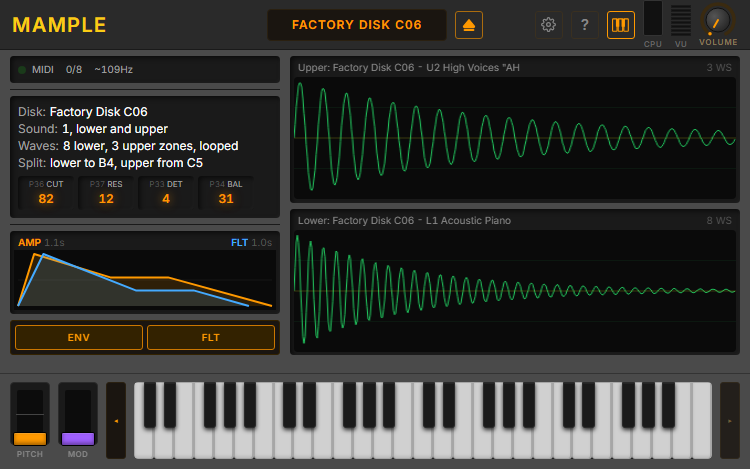
Mample's window is 750 × 469 pixels, or 750 × 364 with the keyboard hidden, and is divided into a header bar, a left column of readouts, a right column of waveform displays, and a performance row of wheels and keyboard along the bottom.
Header Bar
From left to right:
| Control | Function |
|---|---|
| MAMPLE | Branding. Does nothing. |
| Disk name | The loaded disk's title, or NO DISK. Click it to open the Disk Library browser. |
| ⏏ Browse Disk Library | Also opens the Disk Library browser. Lit amber while a disk is loaded. |
| ⚙ Settings | Opens the Settings dialog. |
| ? About | Opens the About dialog: version, build date, credits and — in builds with the network feature — Report an Issue… |
| 🎹 Keyboard | Shows or hides the on-screen keyboard row. Hiding it makes the window shorter. |
| CPU | Load meter for this instance. |
| VU | Output level. |
| VOLUME | Master output level. This is the only knob in Mample; everything else about the sound comes from the disk. |
Left Column
Status strip. A MIDI activity light, the number of voices sounding out of eight, and an approximate rate readout for the loaded sound's first wavesample — how fast the DOC cycles its table at its native clock. Single-cycle waves read in kHz, long multi-cycle samples in Hz. If a load fails, the reason appears here in red.
Info panel.
| Readout | Meaning |
|---|---|
| Disk | The loaded disk's title. |
| Sound | Which of the disk's sounds is loaded into which half: 1, lower and upper when both halves come from the same sound, lower 1, upper 2 when they differ, 2, lower only when one half is empty. |
| Waves | How many key zones each half has, and whether they loop: 8 lower, 3 upper zones, looped. Each wavesample owns the keys up to its own top note, so this is both the wavesample count and the number of splits across the keyboard. It is the row that tells you a disk read correctly: a percussion kit is many narrow zones, a piano a few wide ones, and one zone where you expected eight means the load did not get what you wanted. |
| Split | Where the keyboard divides, as the engine actually routes it: lower to B4, upper from C5 means B4 and below play the Lower sound and C5 and above the Upper. With one half loaded the row is labelled Keys and gives the range that half covers. |
| P36 CUT / P37 RES / P33 DET / P34 BAL | Four of the Mirage's own parameters, as raw values off the disk, each shown with its parameter number: filter cutoff (P36), filter resonance (P37), oscillator detune (P33) and oscillator balance (P34). The numbers are the machine's, so you can dial the same parameter up on hardware and check that the two agree. |
Envelope display. The amplitude envelope (AMP, amber) and filter envelope (FLT, blue) of the loaded sound drawn on one graph with a shared time axis. Each trace is scaled to its own peak, and the legend shows how long each envelope runs. The curves are generated by the engine's own envelope code — the same rates and velocity scaling that shape the sound — so what you see is what plays.
ENV / FLT buttons. Bypass switches for the amplitude envelope and the analog filter. Both are normally on and are saved with your project. Turning ENV off removes the amplitude envelope so the sample plays at full level for as long as the key is held; turning FLT off takes the CEM3328 filter out of the path so you hear the raw DOC output. Useful for hearing what a disk contains as opposed to what the Mirage did with it, and for the occasional sound whose envelope was programmed to near-silence.
Right Column
Two waveform panels, Upper and Lower. Each header names what that half is playing — the disk, the half and slot, and the sound's name, as in Upper: Factory Disk C06 - U2 High Voices "AH — followed by the number of wavesamples loaded there. The trace is the sample data in that half. A half with nothing loaded shows the disk name and an empty panel.
Performance Row
The PITCH and MOD wheels and a 49-key keyboard, described in Playing. The red line across the keys marks the split between Lower and Upper.
Loading Sounds
The Disk Library browser
Click the disk name or the ⏏ button in the header. The browser scans Documents\KnivesOnStrings\Mirage_Disks\ and lists every Mirage disk image it finds. While a large library scans, a progress line shows how far it has got.
- Search filters the list by title or filename as you type.
- Subfolders are shown as folders. If you keep your disks filed into directories, the list groups them the same way, nested as deeply as your filing goes. Click a folder's name to collapse or expand it; they start expanded. A library kept in one flat folder simply shows a flat list.
- Select a disk to see its sounds, one per line. Each line is tagged with its half and slot — U1, L1, U2 and so on, upper above lower within each slot, matching the waveform panels — followed by the sound's name and a LOAD button. A sound that is currently loaded shows LOADED and is highlighted. A three-slot disk, which is most of them, shows all six of its sounds at once.
- The browser's own header names the disk you have loaded, beneath the DISK LIBRARY title. If the two halves came from different disks, it names whichever was loaded most recently.
- Loading is per half. Load Slot 1's Lower and Slot 2's Upper if you like; the Sound readout reports the combination. Loading a sound from a different disk loads that disk first.
- Details (the edit control on a disk) opens the metadata editor for the disk's title and sound names.
- Open opens a standard file dialog for an image that is not in your library folder. The dialog starts in
Documents\KnivesOnStrings\Mample\Sounds\and accepts any file.
If the library is empty, the browser says so and tells you which folder to fill.
After loading
The waveform panels, info panel, envelope display and keyboard split update to the new sound. Everything you need to know about the loaded sound is on the main window; the browser can be closed.
A load that fails — a file deleted since the scan, an image Mample cannot read — is reported in the status strip in red, and the previous sound stays loaded. The info panel always describes the sound the engine really holds.
Saving with your project
Mample saves the loaded disk's path, the slot chosen for each half, the ENV and FLT switches, the MIDI receive channel and the VOLUME setting with your DAW project. When the project reopens, the disk is reloaded from the same path. If the file has moved, the disk name shows as [MISSING] and the rest of the state is kept, so pointing Mample at the file again restores the sound.
Playing
The keyboard
The on-screen keyboard is a four-octave window (49 keys) into the Mirage's five-octave range. It opens on C3–C7; the ◂ and ▸ buttons at either end page it down to C2–C6 and back. Click a key to play it; drag across keys for a glissando. On-screen keys always play at a velocity of 100 — use a MIDI controller for the sound's full dynamic range. The window follows the loaded sound's split until you page it yourself.
The red line marks the split: keys left of it play the Lower sound, keys right of it the Upper. If the split falls outside the visible window, a stripe at the relevant edge shows the split note's name.
The 🎹 button in the header hides the keyboard row when you are playing from a controller and want a smaller window.
The wheels
PITCH bends ±2 semitones at full travel and springs back to centre when released — the Mirage's fixed bend range.
MOD latches where you leave it and controls vibrato depth, with one Mirage rule worth knowing: if the loaded sound has its own LFO depth programmed, the wheel does nothing — the sound vibratos on its own and the OS ignores the wheel. Only sounds with LFO depth set to zero hand vibrato depth to the wheel. That is how the Mirage's OS 3.2 behaves, and Mample reproduces it rather than second-guessing it.
Voices
Mample has eight voices, allocated exactly as the Mirage's firmware allocates them: strictly in rotation, with released notes left to ring out through their release envelopes. A ninth note takes over the oldest voice's oscillators immediately, which cuts that voice off — also exactly as the hardware does. The status strip counts voices in use.
The sustain pedal (MIDI CC 64) holds notes until the pedal is released, as it does on a Mirage with a footswitch connected.
Velocity
Velocity response comes entirely from the loaded sound's own parameters — the Mirage's velocity-to-level and velocity-to-envelope-rate settings for amplitude and filter. Some factory sounds respond strongly, some not at all. Mample applies the firmware's velocity laws as measured on a running Mirage, so a sound that was quiet at low velocity on the machine is quiet here too.
Output
Mample's output is mono, sent to both channels. The Mirage was a mono instrument; there is nothing to pan.
MIDI
MIDI Channel
Settings → MIDI / AUDIO → MIDI Receive Channel selects Omni (All) or a single channel, 1–16. The choice is saved with your project and applies in every format, so in a DAW you can either leave it on Omni and route in the host, or pin the instance to a channel.
Messages
| Message | Effect |
|---|---|
| Note On / Note Off | Plays and releases notes, with velocity. |
| Pitch Bend | ±2 semitones at full deflection. The range is fixed. |
| CC 1 — Mod Wheel | Vibrato depth, subject to the Mirage rule described under The wheels. |
| CC 64 — Sustain Pedal | Holds notes while ≥ 64; releases them when < 64. |
| CC 120 / CC 123 — All Sound Off / All Notes Off | Silences everything. |
Not supported: Program Change, Bank Select, other controllers, aftertouch, SysEx. There are no programs to change — the disk is the program.
Host automation
Three parameters are exposed to the host and can be automated or mapped to hardware:
| Parameter | Range |
|---|---|
| Volume | 0–1, the VOLUME knob |
| Pitch Bend | −1 to +1, the PITCH wheel |
| Mod Wheel | 0–127, the MOD wheel |
Settings
Click ⚙ in the header. The dialog has tabs for SOUND, APPEARANCE and MIDI / AUDIO, plus PRIVACY in builds with the network feature enabled. Settings save automatically.
Sound
| Setting | Description |
|---|---|
| Sound Disks | The folder scanned for disk images. Browse opens a folder chooser; the path beside it is where Mample is reading from now, and cannot be typed into. Changing it rescans the library immediately. The default is Documents\KnivesOnStrings\Mirage_Disks\, and a folder that is no longer reachable, on an unplugged drive for instance, falls back to that default rather than showing an empty library. This is also where the Open dialog starts, unless you have a disk loaded, in which case it starts in that disk's own folder. |
Appearance
| Setting | Options | Description |
|---|---|---|
| Window Scale | 50 %, 75 %, 100 %, 150 %, 200 % | Resizes Mample's window, and everything in it, by the amount you pick. Each option names the size it will produce in pixels, so you can tell in advance what will fit. The choice is saved with the project, so a reopened session comes back the size you left it, and each instance in a session can be a different size. Hiding the keyboard shrinks the window at whatever scale you are using. |
| Onboarding | Show Tour | Runs the guided tour again from the beginning. The tour opens by itself the first time you run Mample and not again after that, however you leave it, so this button is the way back to it. Starting it closes the Settings window. |
The guided tour. The first time you run Mample, a short tour opens by itself a moment after the window appears. It is four steps — what Mample is, where disks come from, what a loaded disk is telling you, and how to play it — and the disks step opens your disk library while it explains it. Skip tour, Escape and finishing it all count the same: it does not open by itself again. In builds with the network feature enabled, a fifth step appears if you have not yet answered the privacy question; that step has no Next, only the two answers. See Privacy.
Dialogs — Settings, the disk browser, About — keep their own size at every scale rather than growing and shrinking with the window, so at 50 % a dialog can be larger than the window and get cut off. Window Scale is the first thing in Appearance, so you can always reach it to pick a larger size again.
Mample's window cannot be resized by dragging its edge — pick a size from Window Scale above instead. On a Windows display set above 100 %, the window also scales with the system, as any application's does, and the two compound: 150 % here on a 150 % display is a large window.
MIDI / Audio
| Setting | Description |
|---|---|
| MIDI Receive Channel | Omni (All) or Channel 1–16. Saved with the project. |
| Audio Output | Standalone only. Device type, output device, sample rate and buffer size, with a running/stopped indicator. On Windows the device types are Windows Audio (WASAPI) and DirectSound; ASIO drivers are not supported. |
| MIDI Input Devices | Standalone only. Enable the MIDI ports the standalone app should listen to. |
In the standalone app these device choices are stored in Documents\KnivesOnStrings\Mample\Mample.settings. In a DAW, audio and MIDI devices belong to the host and these sections do not appear.
Privacy tab
Present only in builds with the network feature enabled. A single switch, Help improve Mample, turns anonymous usage reporting on or off. See Privacy.
Privacy
Mample can be built with an optional network feature that supports two things: anonymous usage statistics, and the Report an Issue… button in the About dialog. Mample ships with this feature switched on, and never sends anything until you have answered the question below. (It was off in builds before v0.5.106, and DSKlusion's is off still: with the feature off Mample never opens a network connection, the PRIVACY tab is absent and the About dialog has no report button.)
The first-run question
Mample asks once, and where it asks depends on the tour. For most people it is the tour's last step; skip the tour before reaching it and Mample asks in a prompt of its own instead. Either way the words are the same:
Help improve Mample. Mample can send anonymous usage data. The plugin version, your operating system, your host and its version, sample rate, buffer size, session length, and a random install id created when you opt in. Never audio, never your samples or disks, never anything that identifies you. You can change this at any time in Settings → Privacy, under "Send anonymous usage data".
Help improve Mample turns reporting on; No thanks leaves it off. Either answer is remembered and the question is not asked again — including by the tour, which drops that step once you have answered. View privacy policy opens the policy in your browser.
What is sent, and what is not
When reporting is on, Mample sends a small record when a session starts and ends, when the issue-report form is opened, and when you turn reporting off. Each record carries the product name and version, the plugin format, the host and operating system, the sample rate and buffer size the host is running, and a random installation identifier that is generated on your machine and is not derived from anything about you or your computer.
Nothing else is sent. Not audio, not sample data, not disk images, not file names, not MIDI, not your projects.
Changing your mind
Settings → PRIVACY → Help improve Mample turns reporting on or off at any time. Turning it off sends one final opt-out record so the installation identifier can be forgotten, and then nothing more.
Support
Bug reports & feature requests: github.com/Knives-On-Strings/mample/issues — the issue templates ask for what we need. No source code is hosted there; it is the support desk.
Report an Issue… (network-enabled builds): in the About dialog. It opens the report form in your browser with the version, format and host already filled in. If the form cannot be reached, Mample shows the form's address so you can copy it.
General questions: [email protected]
Website: knivesonstrings.com/mample
When reporting a problem, the version and build date from the About dialog and the disk involved (name, or a description if you cannot share the image) are the two things that help most.
Appendix
Mirage parameters shown in Mample
Mample displays a handful of the loaded sound's program-1 parameters. The numbers are the Mirage's own parameter numbers, for cross-reference with the Mirage manuals.
| Readout | Mirage parameter | Meaning |
|---|---|---|
| CUT | 36 | Filter cutoff frequency |
| RES | 37 | Filter resonance |
| DET | 33 | Oscillator detune (the second oscillator of each voice against the first) |
| BAL | 34 | Oscillator balance. The Mirage calls P34 D.O. Balance; the panel used to caption it MIX. |
| AMP envelope | 50–54 | Amplitude envelope: attack, peak, decay, sustain, release |
| FLT envelope | 40–44 | Filter envelope: attack, peak, decay, sustain, release |
| Split | — | The key split as the engine routes it. Derived from the wavesample key ranges on the disk. |
Everything else on the disk — LFO settings, velocity sensitivities, keyboard tracking, wavesample tuning and loops — is loaded and used but not displayed.
Troubleshooting
| Symptom | Check |
|---|---|
| The plugin window is a plain grey panel, or blank | The WebView2 Runtime is missing. Install it (see Installation) and reopen the plugin. |
| The Disk Library says no disks were found | Put your images in Documents\KnivesOnStrings\Mirage_Disks\ (subfolders are fine) and reopen the browser. Files that are not Mirage images are skipped even if they have a disk extension. |
| A disk is listed but LOAD does nothing | Read the status strip: it reports a file that has moved since the scan or an image Mample cannot decode. |
| No sound | Check the VOLUME knob, the host's routing, and Settings → MIDI / AUDIO → MIDI Receive Channel (Omni is the safe choice). In the standalone app, check the audio output device there too. |
| Sound, but only on part of the keyboard | Only one half is loaded, see the Sound readout — or you are playing on the far side of the split. Load the other half from the browser. |
| The mod wheel does nothing | The loaded sound has its own LFO depth programmed, and the Mirage ignores the wheel for such sounds. This is faithful behaviour, not a fault. |
| Pitch bend range is too small | It is ±2 semitones, fixed, as on the Mirage. |
| Notes cut off when playing busy passages | Eight voices, hardware allocation: the ninth note steals the oldest. Also faithful. |
| High CPU | All eight voices ringing costs about a quarter of a core. Shorter release envelopes on the disk mean fewer voices ringing at once. |
| A project reopened with [MISSING] as the disk name | The image has moved. Load it again from its new location; the rest of the project state is intact. |
What Mample does not do
- No sampling, editing or saving. Wavesample parameters, loop points and programs are read from the disk and shown; none can be changed. DSKlusion does all of this.
- No sequencer. Sequences stored on a disk are ignored.
- No operating system. Mample does not run Mirage OS code and needs no OS disk. If you want OS-specific behaviour, that is DSKlusion.
- No program change. A Mirage disk is the program; MIDI Program Change and Bank Select are not implemented.
- Mono output, duplicated to both channels.
- Windows only in this release. macOS and iPadOS builds are in preparation.
Trademarks & Attribution
Ensoniq and Mirage are trademarks of Ensoniq Corp. Mample is an independent product, not affiliated with or endorsed by Ensoniq or its successors.
VST is a trademark of Steinberg Media Technologies GmbH. ASIO is a trademark of Steinberg Media Technologies GmbH, registered in Europe and other countries. CLAP is an open plugin standard developed by u-he and Bitwig. Windows, Microsoft Edge and WebView2 are trademarks of Microsoft Corporation.
Open-Source Components
Mample's compiled binary includes the following open-source software:
- JUCE 9 — cross-platform audio plugin framework. © Raw Material Software Limited. Used under the JUCE commercial license.
- clap-juce-extensions — CLAP format support for JUCE. MIT License.
- VST3 SDK — © Steinberg Media Technologies GmbH. Used via JUCE.
- DSPFilters by Vinnie Falco — MIT License.
- r8brain-free-src by Aleksey Vaneev — sample-rate conversion. MIT License.
- melatonin_blur and melatonin_inspector by Sudara — MIT License.
- mc6809 by elmerucr — 6809 CPU core. MIT License. Part of the shared engine library; not exercised by Mample, which runs no Mirage code.
- React and React DOM — © Meta Platforms. MIT License.
- Zustand — MIT License.
- Tailwind CSS — MIT License.
- Inter typeface — © The Inter Project Authors. SIL Open Font License 1.1. Mample's interface face.
- Noto Sans Symbols 2 and Noto Sans Math — © The Noto Project Authors and Google LLC. SIL Open Font License 1.1. Mample bundles small subsets of these, carrying only the arrows, carets, triangles and marks the interface draws, under the family name Virage Symbols.
- Courier Prime typeface — SIL Open Font License 1.1. Carried in the shared stylesheet; Mample renders no monospace.
- IBM Plex Mono typeface — © IBM Corp. SIL Open Font License 1.1. As above.
Mample User Manual v0.6.15 — October 2026 © 2026 Knives on Strings. All rights reserved.
For the most up-to-date version of this manual, visit knivesonstrings.com/mample/manual.